Need Help?
Our Days FAQ
Our Days Calendar is your go-to solution to easily manage child visitation schedules, custody plans, swap days, and keep everyone on the same page — all in one simple app. Whether you’re just starting or need a better system, Our Days Co-Parenting Calendar brings clarity, balance, and peace of mind so you can focus on what truly matters — your kids.
How do I sign up for Our Days Child Custody Calendar?
On the “Login” page, select your preferred sign-in method, and your account will be created immediately. There are no hidden steps, and it’s easy to get started!
What if my child's school calendar hasn’t been released yet?
No worries! You can estimate school holidays based on last year’s schedule or use the app’s ‘default’ dates. Once your school district publishes the new calendar, you can quickly update the dates in your Child Custody Calendar. These holidays easily integrate with both Standard Possession Order (SPO) and Expanded Standard Possession Order (ESPO) schedules.
Can I modify or swap a scheduled visitation date?
Yes, you can edit any future visitation date directly in your “Our Days” Child Custody Calendar. Using the app, parents can send modification requests with just a few taps. Both parents need to have accounts, and the calendar must be shared for this feature to function smoothly.
What’s the refund policy if I’m not satisfied?
You can take advantage of the free trial period to try the Our Days Child Custody Calendar and explore its features fully. Because of this, refunds are not part of our policy.
We’re always eager for your feedback! Share your thoughts with us at support@ourdayscalendar.com.
How can I delete a calendar?
Follow these steps to delete a calendar:
- Open the calendar.
- Tap the calendar icon (top right).
- Scroll down to Delete.
- Enter the calendar name, then confirm.
Note: Only the calendar creator can delete or unshare it.
How do I delete my account?
Simply go to the Account section in the app and select “Delete Account”. This will remove your account and associated Our Days Child Custody Calendars within 24 hours. Don’t worry—you’re always welcome to come back!
How can I manage notifications?
To adjust email notifications:
- Open the Our Days Calendar app.
- Navigate to Account and update your email preferences.
To stop push notifications:
- Open your phone’s settings, go to App Info, and manage notifications for the parenting app.
Note: Deleting the app doesn’t stop email notifications. To ensure they stop, you’ll need to delete your account (refer to “How to delete my account?” above).
Is the Our Days Child Custody Calendar available worldwide?
Yes! The Our Days Calendar is available across all 50 U.S. states and in over 150 countries worldwide. Use your account to access the app wherever you are.
Why can’t I modify past visitation dates?
You actually can! Tap on the past date you want to adjust, and select “Edit”. While the app focuses on current and future visitation schedules, flexibility is there for managing past dates too.
Is the app available for iPhone and Android?
Yes, it is! Download the Our Days Calendar app from the 🍏 App Store or 🤖 Google Play to access your child custody calendar right from your phone.
Can I change the week’s start day on my calendar?
Yes, you can customize the week’s start day in the Account Details section of the Our Days Child Custody Calendar app. Pick whichever day works for your schedule.
Can I integrate my Calendar with Outlook or Google Calendar?
Currently, you can sync the app with your Google Calendar, which adds flexibility to how you manage your Our Days Calendar. Stay tuned for updates as we work on Outlook integration and additional features!
Can I Share My Calendar with Others?
Absolutely! Sharing your Our Days Calendar is easy and one of the most-loved features of the app. You can share schedules with co-parents, grandparents, lawyers, or any family member who has an account.
Here’s how:
- Open the calendar you want to share.
- Tap ‘Edit Calendar’ icon — it looks like a calendar with a pencil in the corner.
- Select “SHARE CALENDAR”
- Enter the recipient’s email address.
- Choose their Access level (View-only or Edit).
- Tap “SHARE”
💡 Tip: If the person you’re sharing with doesn’t have an account yet, go to the “About” tab and tap “Share App” to invite them. Once they sign up, sharing becomes seamless!
Can’t Share a Calendar—What’s wrong?
If you’re having trouble sharing Our Days Child Custody Calendar, it’s usually related to an email issue:
- Double-check the recipient’s email address for typos.
- Verify that the user has an account in the app.
- Make sure you’re using the correct email associated with their account.
Tip: Keep your account secure and never share passwords. Our support team will never ask for sensitive information.
Can I use the Our Days Child Custody Calendar app overseas?
Yes! The Our Days Calendar app is functional across the globe. Easily access and update your co-parenting schedules, no matter where you are.
How many Child Custody Calendar can I create?
There’s no limit. Whether you need one calendar or several, the app allows you to create as many schedules as you need for different purposes or family arrangements.
How do I reset or change my password?
To reset or change your password in the Our Days Calendar app:
- Open the app and go to Account.
- Tap Sign Out.
- Select Recover Password.
- Check your email for instructions (mark emails from Our Days as ‘not spam’).
If you’re stuck, reach out to our support team for assistance.
What if I haven’t finalized visitation dates with the other parent?
That’s perfectly okay! Co-parents often adjust their schedules through legal agreements or mutual understanding. Our Days Child Custody Calendar adapts to these changes—just update the agreed-upon dates when finalized. For the smoothest experience, communicate your changes with the other parent in advance.
What is the cost of the Our Days Child Custody Calendar app?
Our Days Child Custody Calendar app offers a free trial for you to test all its features. After the trial, subscriptions start at an affordable price of $1.99/month. For full pricing details, visit the app’s Pricing Page.
Why should I choose Our Days Child Custody Calendar app?
Here’s what makes the Our Days Calendar app stand out as the best Child Custody Calendar option:
- Automatically generated possession schedules like SPO or ESPO simplify setup.
- Affordable pricing starts at just $1.99 per month.
- Your data is private—we don’t sell or share personal information.
- Features like customizable schedules and easy sharing cater to your unique parenting needs.
The app was designed by a parent, for parents—created to make co-parenting simpler and stress-free.
Can I print Our Days Child Custody Calendar?
Yes! To export your custody schedule as a PDF for saving or printing:
- Tap the ‘i’ icon on the menu bar.
- Select the PDF option at the top right corner of the app screen.
TIPS & TRICKS Child Custody Calendar
Unlock the Full Potential: Your Comprehensive Guide to Mastering Our App’s Features

Step 1: Create Separate Calendars (if needed)
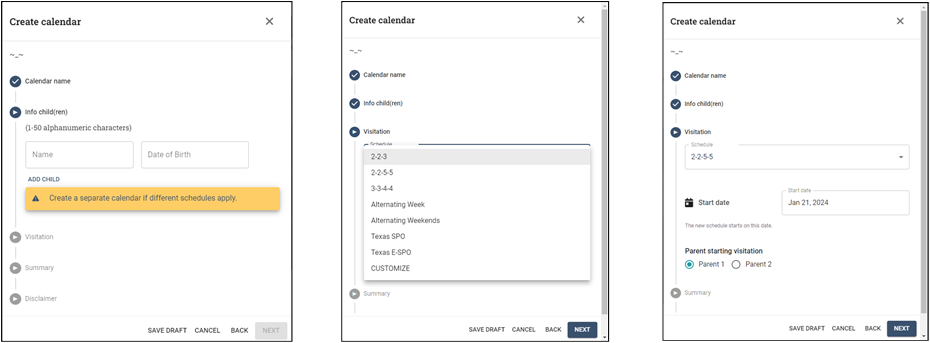
If your children follow different visitation routines, you can create a separate Child Custody Calendar for each of them. This feature ensures clarity and avoids confusion between different schedules.
Step 2: Create a Calendar Without Adding Children (Optional)
You have the option to create a calendar without immediately adding children. However, this feature is not yet available on the web app but can still be done via other supported platforms.
Step 3: Choose a Visitation Schedule
Once you’ve started creating a calendar, select the preferred visitation schedule. The Child Custody Calendar will display all the relevant options, allowing you to customize the schedule according to your family’s specific situation.
Step 4: Set the Start Date
When setting up your Child Custody Calendar, keep in mind that the start date must align with the first day of the selected visitation pattern. Additionally, the calendar cannot start earlier than the first day of the current month.
Step 5: Adjust the Starting Parent
You can assign which parent starts the schedule. If you decide to change the starting parent, the Child Custody Calendar will automatically adjust the days allocated to each parent so the schedule remains accurate.
Creating a calendar with the Child Custody Calendar app is an easy and flexible process designed to accommodate your family’s needs. Start today and enjoy streamlined co-parenting scheduling!
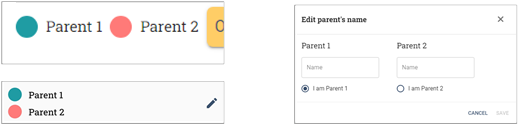
The Child Custody Calendar app allows you to customize and organize parenting information with ease. Here’s a simple step-by-step guide on how to edit parent details, both in the web and mobile app versions.
Editing Parent Details in the Web App
Access the ‘Parent 1, Parent 2’ Area
- Log in to your Child Custody Calendar web account.
- Navigate to the section labeled ‘Parent 1, Parent 2’ on the dashboard. This is where you’ll manage parent information.
Edit Parent Attributes
- Click on the names or designated parent fields to edit details such as names or any other relevant attributes.
Choose a Color to Represent Each Parent
- Although currently unavailable in the web app, a future release will allow you to select a color circle to assign a unique color for each parent. This feature is useful for visualizing and distinguishing schedules.
Editing Parent Details in the Mobile App
Select the Parent Section
- Open the Child Custody Calendar mobile app.
- Tap on the parent names visible in the main menu to enter the settings where you can edit details.
Modify Parent Information
- Update parent attributes, including names and other necessary details, as needed.
Assign Parent Colors
- Tap on the color circles displayed in this menu to select a color that represents each parent. This feature creates a clearer, color-coded schedule for easier identification.
By following these steps, you can easily personalize parent details in the Child Custody Calendar app, making your co-parenting schedule more organized and visually effective. Stay tuned for future updates to the web app, which will bring even more functionality!

The Child Custody Calendar app offers flexible tools for adjusting day allocations and managing additional preferences. Here’s a step-by-step guide to help you make these changes with ease.
Step 1: Modify Future Dates
- You can only modify dates that occur in the future. Any past dates cannot be edited to maintain accurate historical records in your schedule.
Step 2: Use the ‘Modify Selected Period’ Dialog
- Select a range of dates you wish to adjust using the ‘Modify Selected Period’ dialog.
- If you add notes within this dialog, they will automatically apply to all dates in the selected range.
- Parental responsibilities assigned over this range will update for the entire period, ensuring consistency.
Note: Only one change is allowed per day. If you’ve already reassigned a responsibility for a particular day, you cannot reassign specific hours for the day back to the original parent.
Step 3: Adjust the ‘Sleeps Over’ Option
- If the ‘Sleeps Over’ option is unticked for a day, the ‘From’ and ‘To’ time boxes will appear. Use these boxes to specify the start and end times for visits without overnight stays.
- Ensure the selections align with your family’s arrangements for clarity and accuracy.
Step 4: Manage US Holidays on the Calendar
- By default, notable US holidays are included in the Child Custody Calendar.
- For users residing outside the US, these holidays can be removed in the mobile app. Simply go to the Account section, locate the holiday settings, and untick the checkbox to exclude them from your calendar.
By following these steps, you can customize day allocations and other settings effectively in your Child Custody Calendar. This flexibility ensures that your family schedule is tailored to your unique needs.
You can make a request to change the visitation schedule by clicking the ‘shaking hands’ in the mobile app. The calendar must have been ‘shared’ and both parents need user accounts.

![]()
This opens the request form.


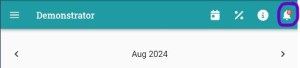
The progress of requests can be seen by clicking on the ‘bell icon at the top right of the mobile app screen.